
오늘이라도
[I. 프로젝트 환경설정] 3. View 환경설정 본문
https://github.com/upcake/hello-spring
1. Welcome Page 만들기
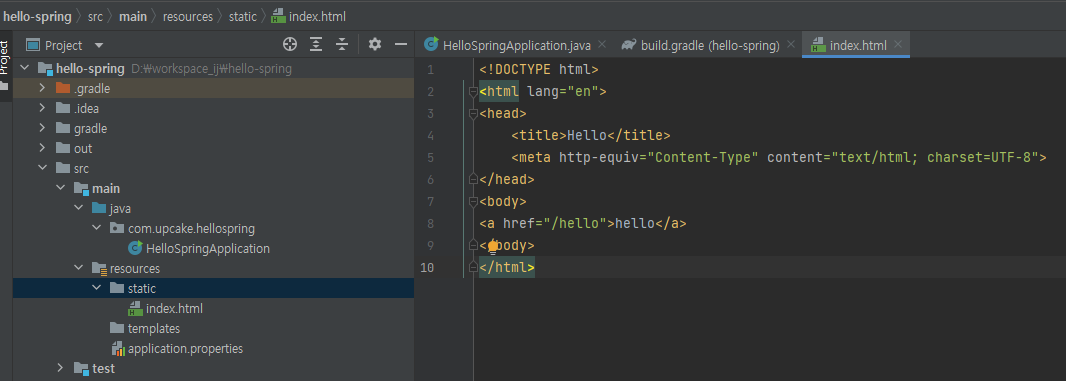
- /src/main/resources/static/index.html 작성
- 작성 후 재시작
<!DOCTYPE html>
<html lang="en">
<head>
    <title>Hello</title>
    <meta http-equiv="Content-Type" content="text/html; charset=UTF-8">
</head>
<body>
<a href="/hello">hello</a>
</body>
</html>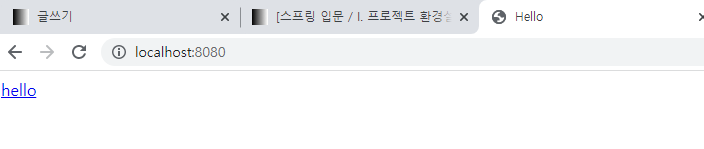
- 스프링 부트가 제공하는 Welcome Page 기능
· static/index.html 을 올려두면 Welcome Page 기능을 제공한다.
- https://docs.spring.io/spring-boot/docs/2.6.2/reference/htmlsingle/
Spring Boot Reference Documentation
This section goes into more detail about how you should use Spring Boot. It covers topics such as build systems, auto-configuration, and how to run your applications. We also cover some Spring Boot best practices. Although there is nothing particularly spe
docs.spring.io
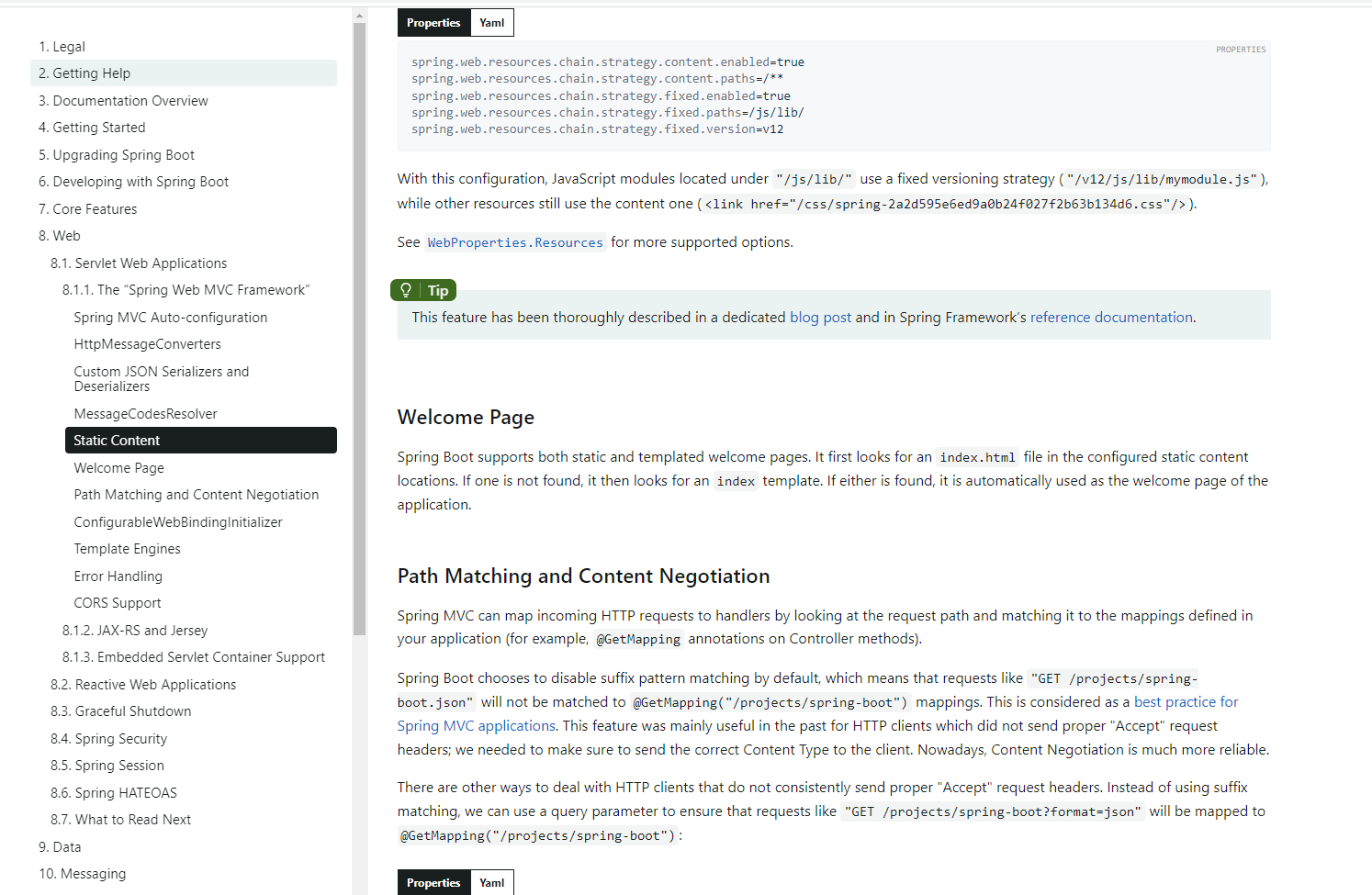
- 궁금한게 있으면 스프링 레퍼런스 문서에서 찾아볼 수도 있다.
2. thymeleaf 템플릿 엔진
1) 컨트롤러 작성
- hellospring.controller.HelloController
package com.upcake.hellospring.controller;

import org.springframework.stereotype.Controller;
import org.springframework.ui.Model;
import org.springframework.web.bind.annotation.GetMapping;

@Controller
public class HelloController {

    @GetMapping("hello")
    public String hello(Model model) {
        model.addAttribute("data", "hello!!");

        return "hello";
    }
}
2) hello.html 작성
- resources/templates/hello.html
<!DOCTYPE HTML>
<html xmlns:th="http://www.thymeleaf.org">
<head>
    <title>Hello</title>
    <meta http-equiv="Content-Type" content="text/html; charset=UTF-8">
</head>
<body>
<p th:text="'안녕하세요. ' + ${data}" >안녕하세요. 손님</p>
</body>
</html>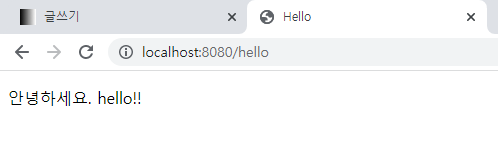
3) 동작 환경
- 컨트롤러에서 리턴 값으로 문자를 반환하면 뷰 리졸버('viewResolver')가 화면을 찾아서 처리한다.
i. 스프링 부트 템플릿엔진 기본 viewName 매핑
ii. `resources:templates/` + {ViewName} + `.html`
- ※ 참고 : `spring-boot-devtools` 라이브러리를 추가하면, `html` 파일을 컴파일만 해주면 서버 재시작 없이 View 파일 변경이 가능하다.
- 인텔리J 컴파일 방법 : 메뉴 build → Recompile
'인프런 > 스프링 입문 (김영한)' 카테고리의 다른 글
| [II. 스프링 웹 개발 기초] 6. MVC와 템플릿 엔진 (0) | 2021.12.23 |
|---|---|
| [II. 스프링 웹 개발 기초] 5. 정적 컨텐츠 (0) | 2021.12.23 |
| [I. 프로젝트 환경설정] 4. 빌드하고 실행하기 (0) | 2021.12.23 |
| [I. 프로젝트 환경설정] 2. 라이브러리 살펴보기 (0) | 2021.12.23 |
| [I. 프로젝트 환경설정] 1. 프로젝트 생성 (0) | 2021.12.01 |


